Skip to content

Hide pre-built templates

To hide the pre-built templates included in the initial WordPress Hosting setup, follow these simple steps: Go to the Product Info tab. Click on Admin Tools . Select Product Settings . Within the Prod

Last updated


To hide the pre-built templates included in the initial WordPress Hosting setup, follow these simple steps:

  1. Go to the Product Info tab.
  2. Click on Admin Tools.
  3. Select Product Settings.

Within the Product Settings section, you'll see an option labeled Show Included Templates. Toggle this setting off to hide the default pre-built templates. Disabling this option ensures that these templates will no longer be visible when creating new sites.

Here's an illustration of the setting in action:

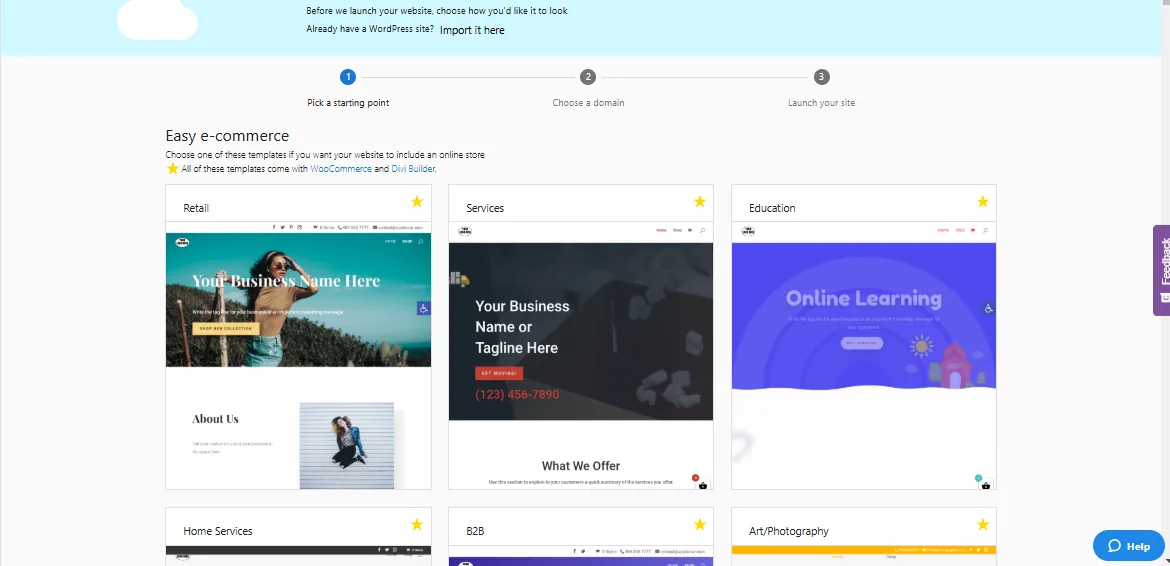
When the included Website templates are enabled:
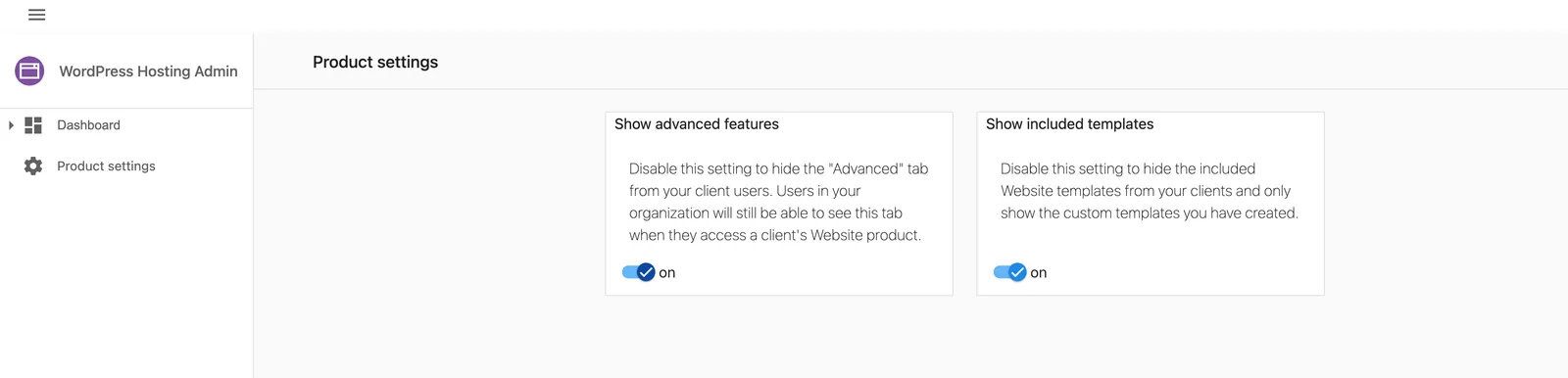
Show Included Templates enabled - templates visible
Templates list showing pre-built templates

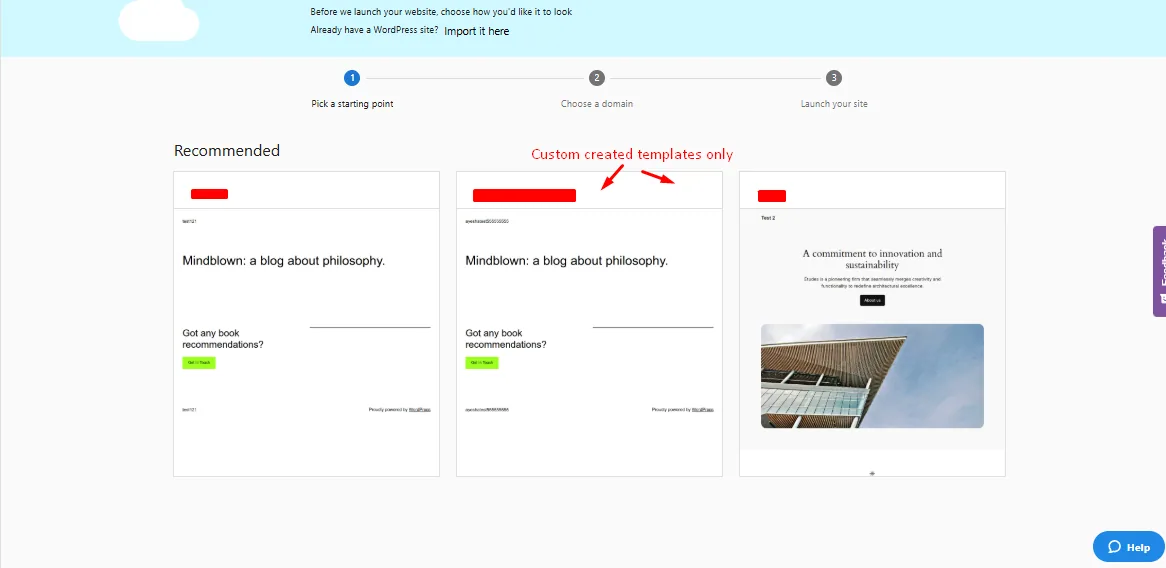
When the included Website templates are disabled:
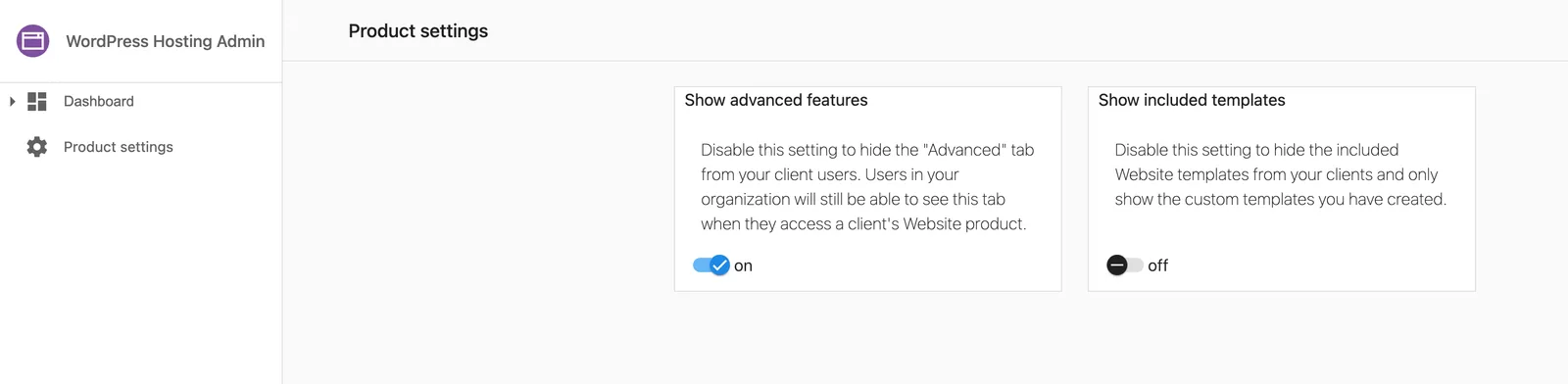
Show Included Templates disabled - templates hidden
Templates list without pre-built templates