
The Social Marketing Composer helps you create, schedule, and manage social media content across multiple platforms in one place. Whether you are posting a single update or running a campaign, the Composer provides the tools you need to customize each post for every network.
Why use Posts?
- Publish to multiple social accounts at once
- Customize content for different platforms
- Schedule posts in advance or save them as drafts
- Ensure each post meets platform requirements and limits
- Improve writing quality with grammar tools
- Use AI to generate post content and images
What’s included
- AI Post Creation: Use AI tools to generate engaging post content
- Posting Content: Step-by-step guide to publishing content
- Using Images: Best practices for image content and optimization
- Image and Video Requirements: Technical specifications and platform requirements
- Posting Videos: Complete guide to video content posting
- Share Reviews as Posts: Convert customer reviews into social media content
- Long-Form Blog Content: Publish blog content through Social Marketing
- Manage Posts: Edit, delete, and organize your scheduled and published posts
Get started
- Go to
Social Marketing. - Click
ComposeorCreate. - Select the social accounts you want to post to under
Post to. - Write your content or use
Write with AIto generate post text. - Add images or videos, or use
Stock ImageryorGenerate Image with AI. - Choose
Post Now,Schedule, orSave as Draft.
How to Compose a Post
- Go to
Social Marketing. - Click
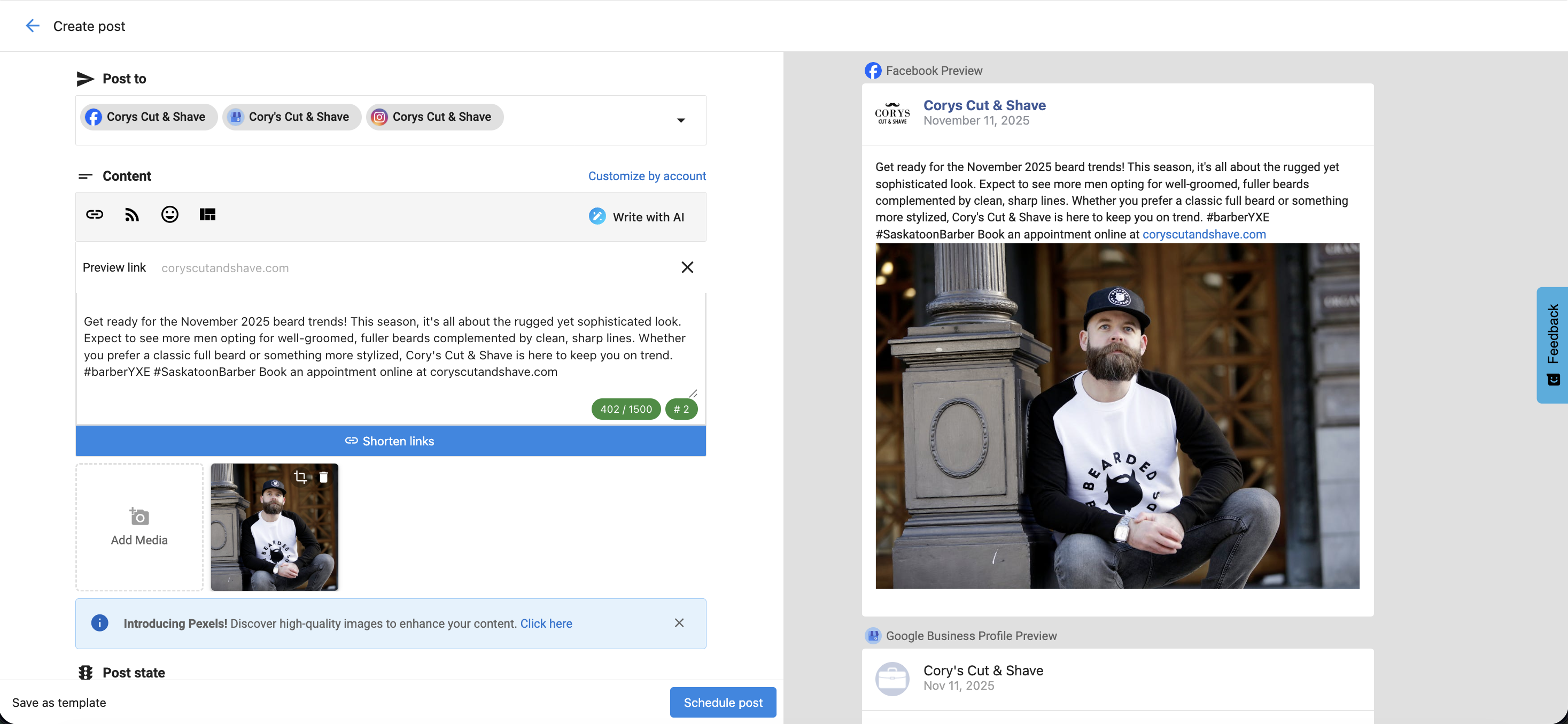
ComposeorCreate. - Choose Social Accounts under the
Post tosection.- You can select multiple social accounts across platforms.
- Only one X (Twitter) account can be selected per post due to X’s publishing rules.
- Posts cannot be scheduled or published to expired accounts.
- Write Content under the
Contentfield:- Use
Write with AIto generate post text. - Shorten links to track performance or fit character limits on X (Twitter).
- Add emojis, hashtags, or tagged accounts.
- Insert content from RSS feeds or curated sources.
- Save posts as templates for future use, or apply existing templates.
- Use
Customize by Accountto adjust text for different platforms.
- Use
- Add Media
- Upload your own images or videos.
- Use
Stock ImageryorGenerate Image with AI. - Instagram requires an image; TikTok requires a video.
- Schedule or Publish
- Choose
Post Now,Schedule, orSave as Draft.
- Choose
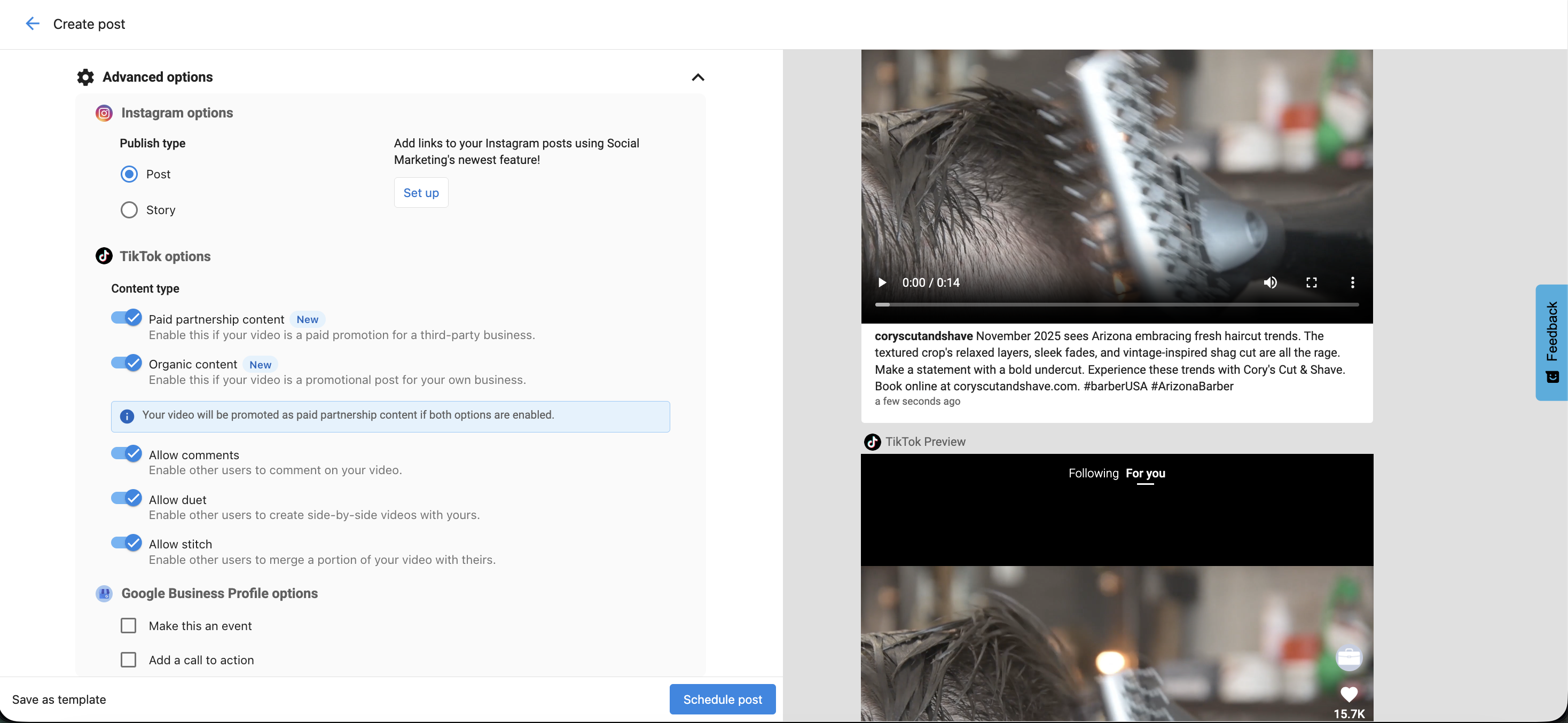
Platform-Specific Options
- Choose between
PostorStory.
TikTok
- Paid Partnership Content – Enable if promoting a third-party business.
- Organic Content – Enable if promoting your own business.
- Allow Comments, Duet, or Stitch – Choose how others can interact with your video.
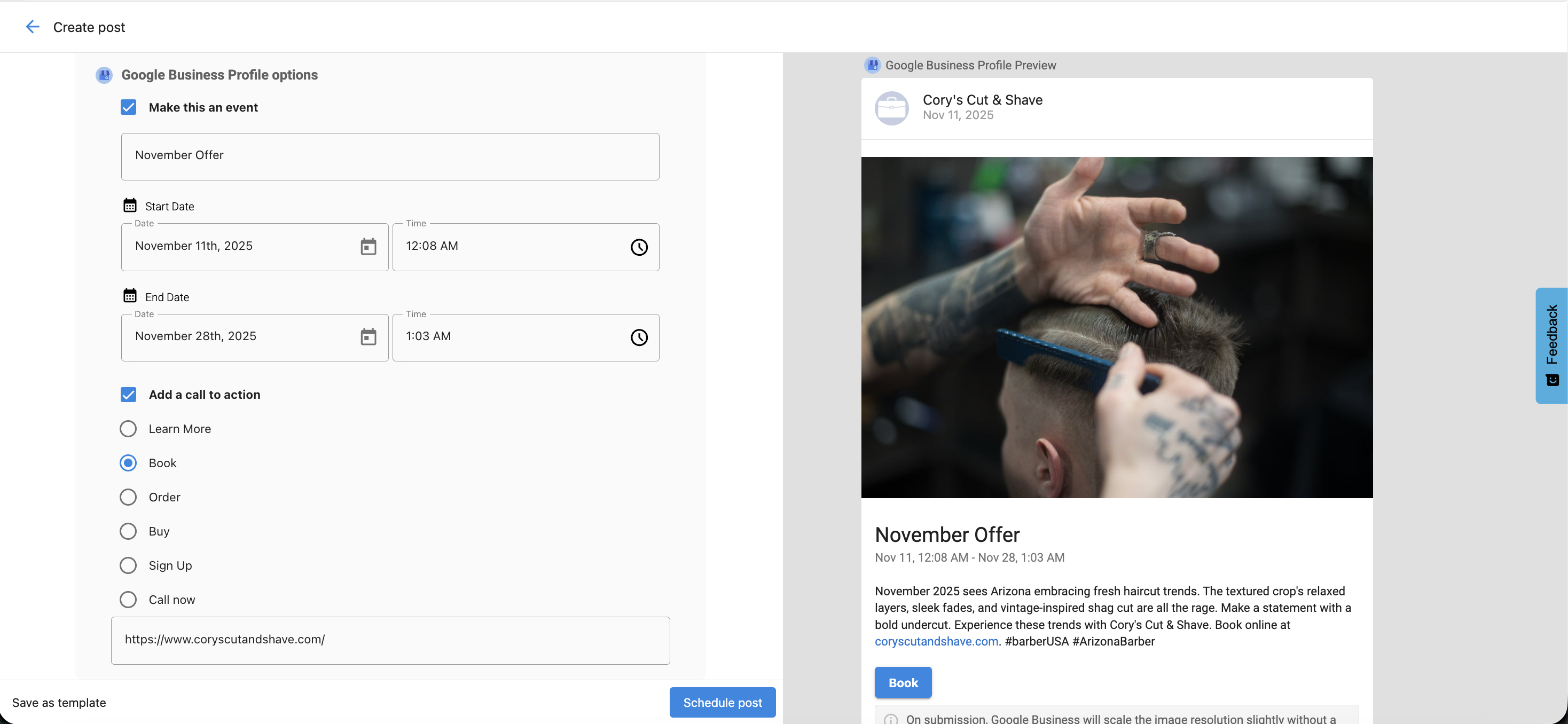
Google Business Profile
- Add a Call to Action (CTA):
Book– Invite users to book an appointment.Order– Link to an ordering page.Shop– Encourage browsing a catalog.Learn More– Provide more details on a linked page.Sign Up– Prompt users to register or join.Call– Add a clickable phone number.
- Add a Start Date and End Date to make it an event.
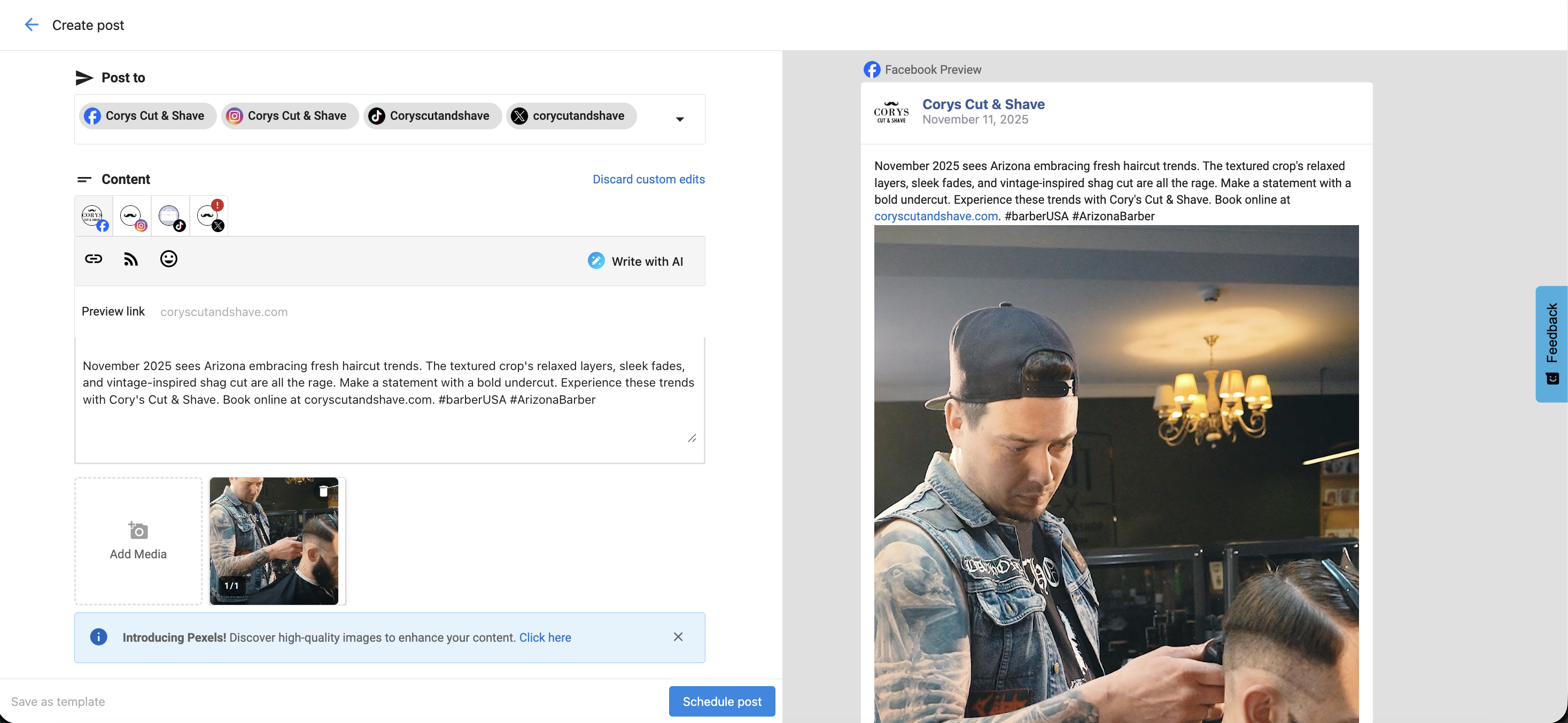
Customize by Account
Each social network has different requirements. Use Customize by Account to:
- Adapt content automatically to match platform limits
- Avoid errors with image size or video length
- Tailor tone, hashtags, and visuals for each network
Editing Drafts and Scheduled Posts
- Go to
Social Marketing→Posts→DraftsorScheduled. - Click
Editto make changes to text, media, or posting date. - Use
Customize by Accountto update specific platform versions.
Hashtags and Tagging
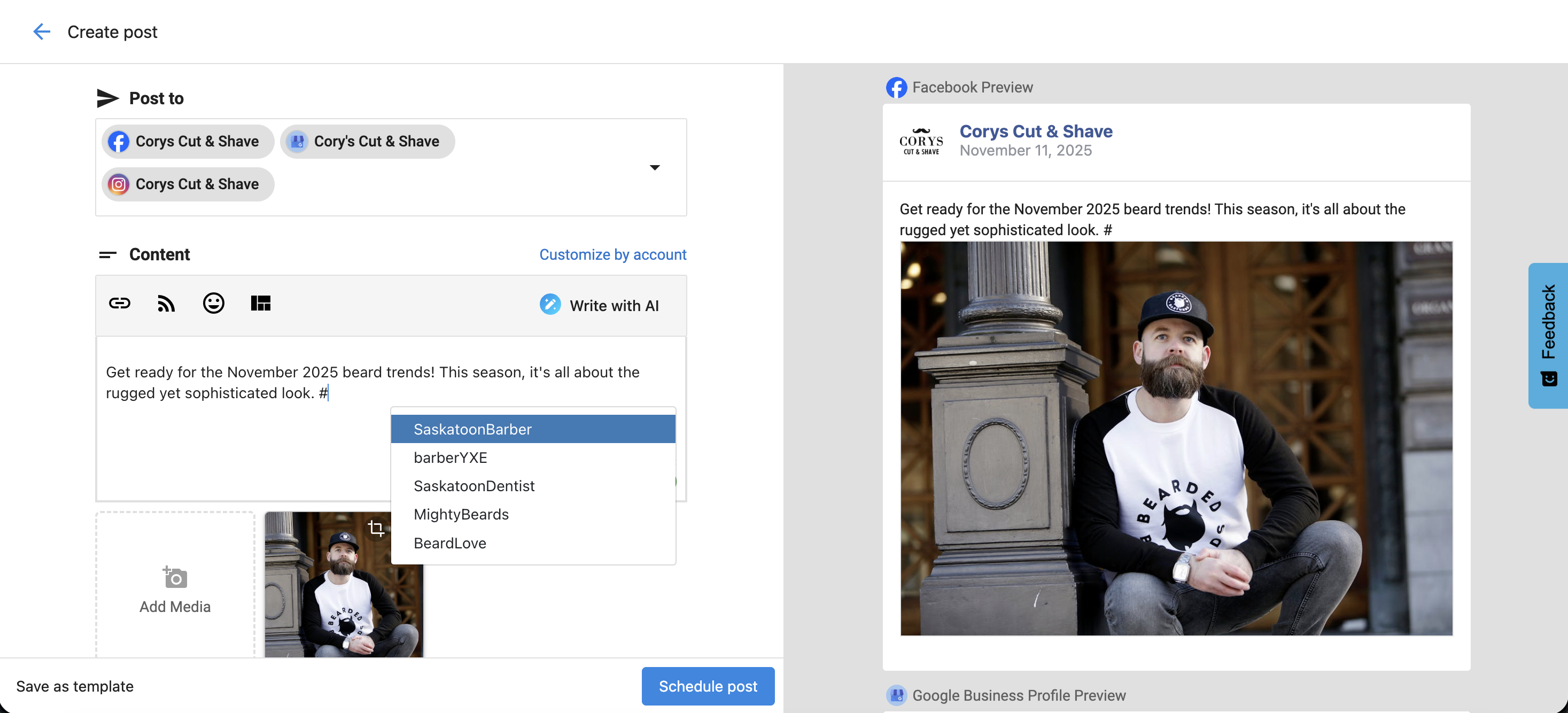
Hashtags
- Type
#in the Composer to view recent hashtags. - Start typing to see autocomplete suggestions or add new ones manually.
- Frequently used hashtags are remembered for next time.
Tagging
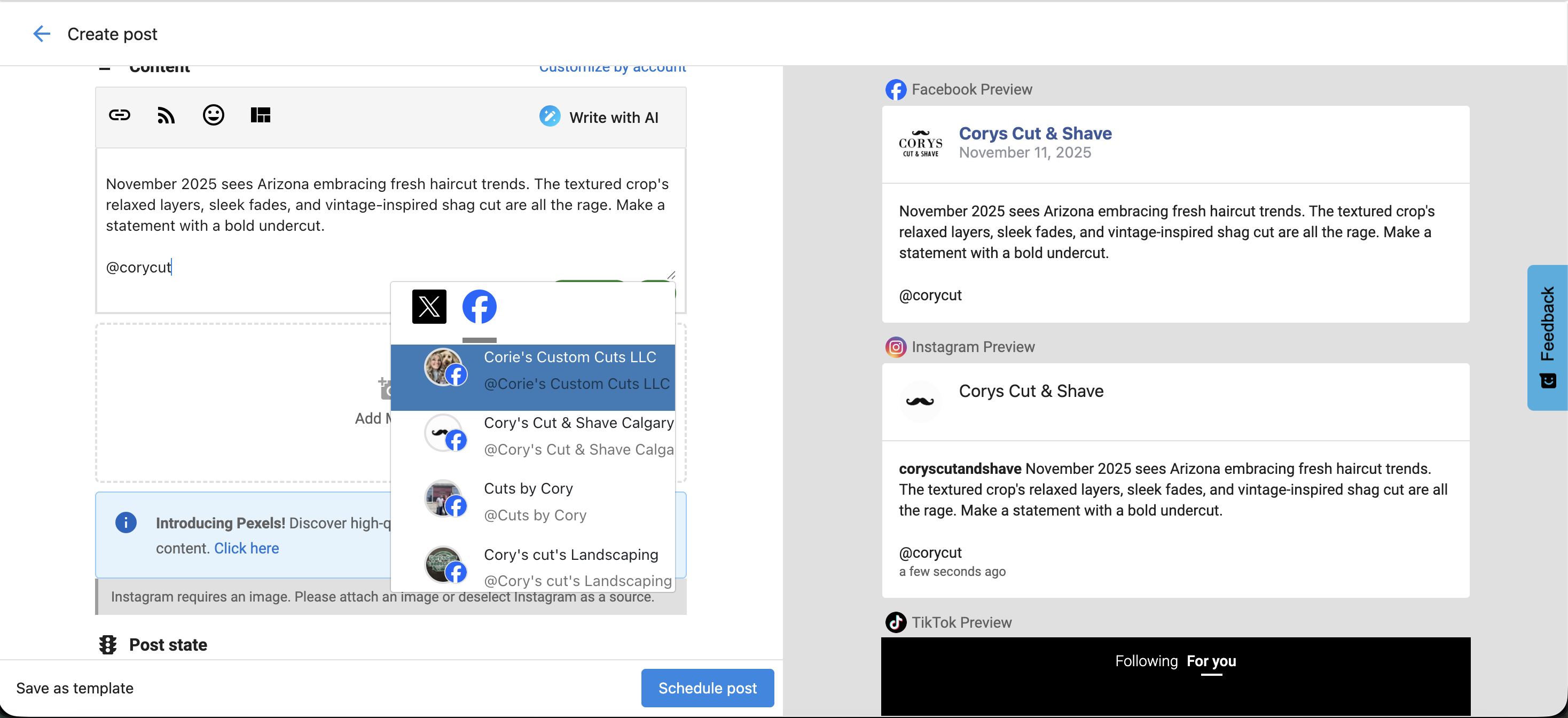
- Tag other accounts on Facebook (Business Pages) and X (Twitter) by typing
@followed by the account name. - Use tagging strategically to increase visibility and engagement.
Link Previews
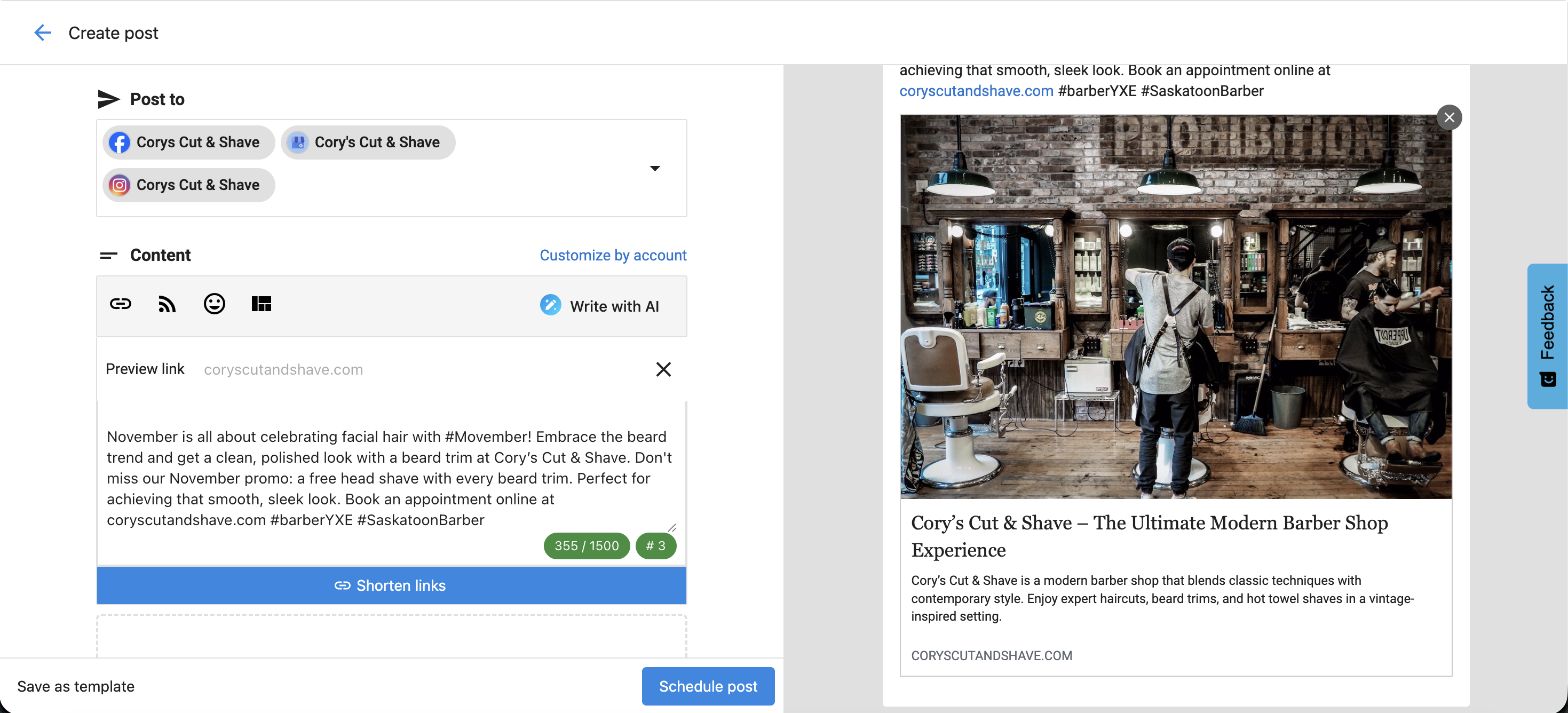
When you add a URL:
- Facebook, LinkedIn, and X (Twitter) support link previews with image and title.
- LinkedIn allows preview image selection.
- Instagram and Google Business Profile do not support link previews.
- Google Business Profile allows CTAs (e.g.,
Learn More,Book, orOrder) that include clickable links.
Bulk Posting Limits
| User Type | Max Scheduled Posts |
|---|---|
| Standard | 20 |
| Pro | Unlimited |
Platform Posting Limits
Facebook and Instagram allow up to 25 API-published posts per 24 hours per account. Exceeding this limit may trigger spam detection, reduce reach, or result in account restrictions.