Skip to content

My Meetings

Use My Meetings to share booking links, manage availability, and track upcoming meetings.

Last updated


Use My Meetings to share booking links, manage availability, and track upcoming meetings.

Why use My Meetings?

  • Make it easy for prospects and customers to book time with you
  • Reduce back-and-forth and no-shows with automated confirmations
  • Keep meetings connected to contacts, companies, and opportunities

What’s included

  • Personal and team booking links
  • Availability settings and buffers
  • Calendar connections
  • Microsoft Outlook/365 calendar integration
  • Microsoft Teams video conferencing integration
  • Multi‑host events (up to five hosts)

How to use My Meetings

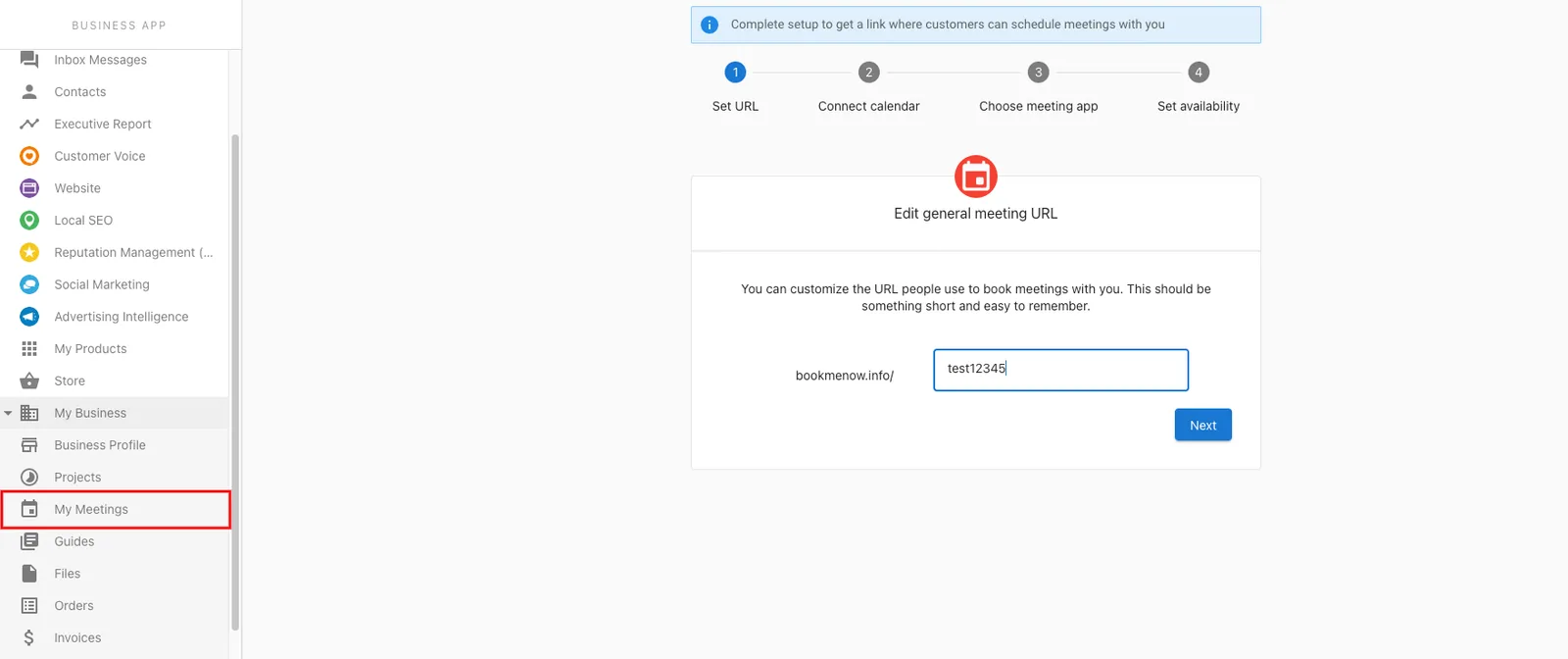
  1. Go to CRM > My Meetings.
  2. Connect your calendar and configure availability.
  3. Create personal or team booking links and share them.
Frequently Asked Questions (FAQs)

Yes. Configure durations when creating booking links.

You can add up to five hosts to one event. All selected hosts are added to the calendar invite so everyone stays in the loop.

You’ll need to sign in with a Microsoft 365 account you control. Some organizations require an administrator to approve new app connections—if you see a consent prompt, contact your Microsoft admin to enable it.

The conferencing provider set in the booking link is used. If Microsoft Teams is connected and selected for the link, a Teams meeting is created and included on the invite that all hosts and attendees receive.

In this section

Calendar ViewsThe My Meetings calendar gives you a live, interactive view of your business's schedule. Filter by team member or event type, switch between six calendar views, and book, reschedule, or cancel meetingCustomizing meeting recording settingsThis article explains how to access your meeting settings and customize bot-related options, including the note-taker name and the compliance announcement.Groups and Service MenusGroups and Service Menus let you organize event types into curated collections, so you can share a single link with customers or publish a full service catalogue on your website. Groups — Bundle multiMeeting Details pageThe Meeting Details page in the CRM brings together everything you need to review a recorded meeting in one place. It includes an AI-generated summary, detailed insights, participant information, a fuRecord an In-Person MeetingYou can record audio from in-person meetings directly on the My Meetings page. Once saved, the recording is uploaded to the CRM where it can be analyzed and linked to a contact.Send a meeting request from CRM ContactsInstead of copying a booking link and emailing it manually, you can send a meeting request directly from a contact's profile in the CRM. The contact receives an email with your booking link and picks Setting up calendar integrationCalendar integration connects your Google Calendar or Microsoft 365 / Outlook calendar to the platform, enabling availability checking, conflict detection, and automatic creation of meeting events wheTeam booking linksTeam booking links let you create a single booking link that distributes meetings across a team. For example, your business might run a qualification call before handing a prospect to a sales rep — crVisibility settings for recorded meetingsVisibility Settings enable you to manage access to and control the privacy of sensitive content, including recordings, transcripts, summaries, and AI insights. These settings help safeguard sensitive