
Contacts
Use Contacts to manage the people you engage with. Create and update contact records, import and export in bulk, associate contacts with companies and opportunities, and take action with campaigns, lists, and tasks.
Why use Contacts?
- Centralize people data for sales and marketing
- Keep profiles up to date with default and custom fields
- Start campaigns and automations from contact segments
- Track activity and tasks to move deals forward
What’s Included with Contacts?
- Contacts table and profile for searching, filtering, and editing records
- Import and export to manage data at scale
- Default fields (name, email, phone, lifecycle, UTM, source, etc.) and support for custom fields
- Associations with companies, opportunities, tasks, and lists
- Campaign actions including scheduling, pausing, or resuming campaigns
How to Use Contacts
View and manage contacts
- Go to
CRM>Contacts. - Search, sort, and filter the table to find the right records.
- Click a contact to open the profile and edit details, log activity, and manage tasks.
Import contacts (and companies)
- In
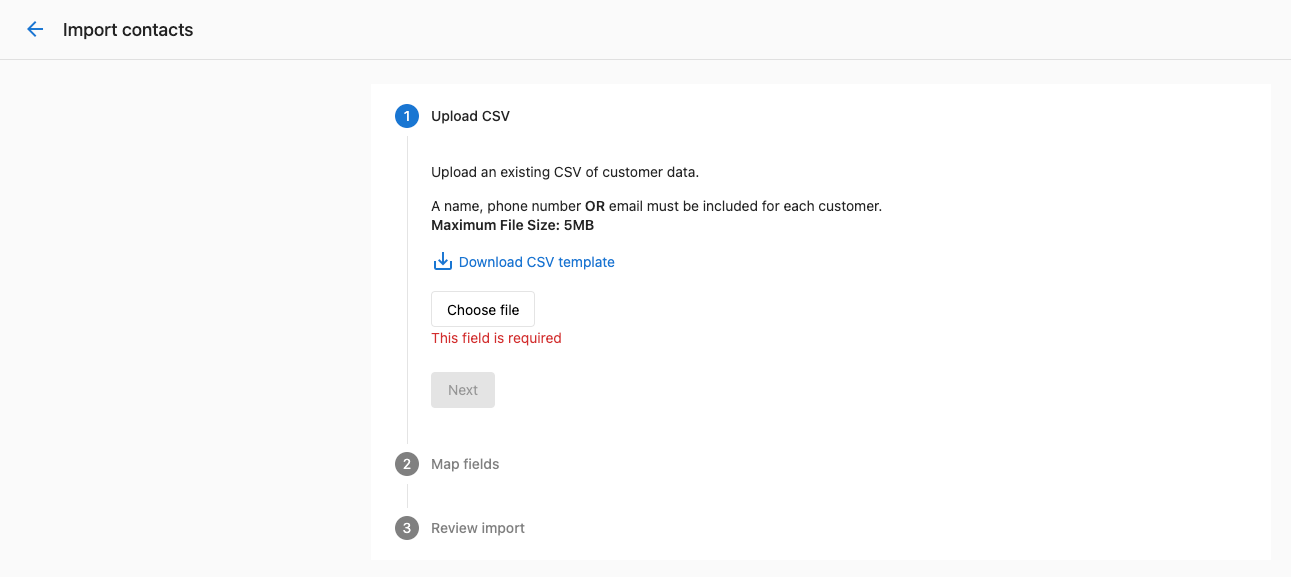
CRM>Contacts, clickImport. - Upload a CSV and map columns to contact/company fields.
- Review, choose whether to update existing matches, and finish the import.
Export contacts
- In
CRM>Contacts, select the checkbox at the top-left of the table. - Choose
Select all…>Exportto export the displayed rows as CSV.
Start, pause, or resume campaigns
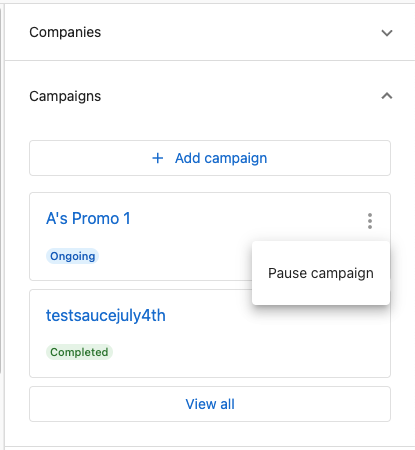
- Open a contact profile and go to the
Campaignssection. - Use the action menu to schedule, pause, or resume campaigns for that contact.
Add contacts to lists or automations
- From the Contacts table, select records and use actions to add them to a
List. - Trigger or schedule automations for the selected list.
Log activity and create tasks
- On a contact profile, use the activity area to log notes, emails, calls, messages, and meetings.
- Create tasks for follow-up and associate them with the contact (and related company or opportunity).
Frequently Asked Questions (FAQs)
CSV imports up to 5 MB are supported. Depending on fields, this typically allows tens of thousands of contacts per import.
Yes. During import, map CSV columns to either contact or company fields. New companies will be created when needed.
Yes. Choose to update matches by ID, external ID, or email when reviewing the import.
After an import completes, review the import summary in CRM > Contacts to see successes, failures, and error details for each row.
In the CSV, include an Owner Email column and map it during import. Matching is done against existing users; when a match is found, that user is set as the contact owner.
Yes. Set up email auto-BCC and forwarding so sales emails are captured to the appropriate contact records.