
Set up Conversations for Emails
You can use Conversations to send and receive emails with leads and customers from a shared email address. As long as you have the email address for a contact, anyone on the team can send an email to that customer from your centralized Conversations and keep message history in one shared place.
Sender, Reply, and Forwarding settings for email in Conversations
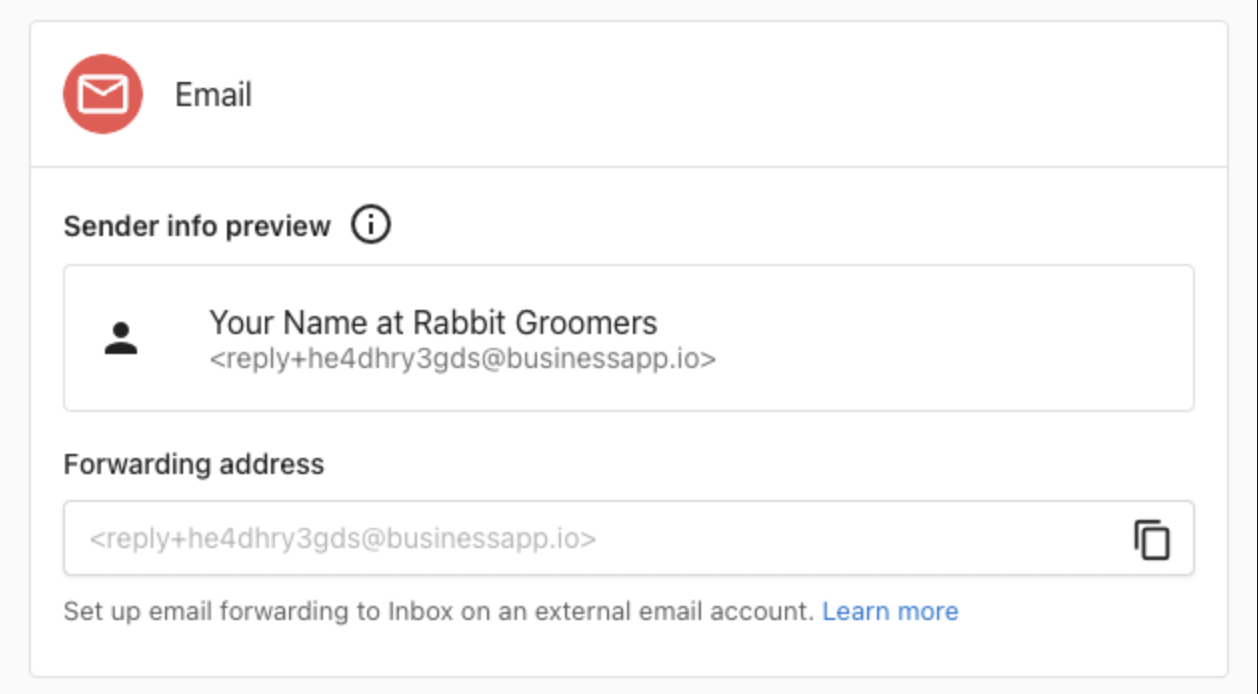
Conversations Email Sender Address
Conversations uses a shared email address to keep all customer conversations in one place. When you send a message, it appears to come from your business’s assigned email (like [email protected]), but the sender’s name and signature are visible to the customer. This helps your team collaborate without confusion over who sent what.
Conversations Email Reply-to Routing
The reply-to feature ensures that responses from customers are automatically directed back to the shared Conversations thread. When a customer replies, their response lands in the same conversation where any team member can continue the discussion.
Conversations Email Forwarding Settings
By setting up email forwarding, you can receive incoming messages from your existing business email (e.g., [email protected]) directly into Conversations. Use the tabs below for detailed setup instructions per provider.
You can use the instructions below to get you started on forwarding emails from your email provider.
Gmail Forwarding to Conversations
- Go to
Gmail > Settings > Forwarding > POP/IMAP. - Add your Conversations forwarding address and confirm the request.
- Enable forwarding and save changes. Optionally, set filters to forward selected emails only.
Outlook Forwarding to Conversations
- Go to
Outlook > Settings > Mail > Forwarding. - Enable forwarding and enter your Conversations forwarding address.
- Save your changes.
Sending emails using Conversations
- Click
New Messagein Conversations. - Enter the recipient’s email address.
- Write your message, then select
Emailin the Send via dropdown menu.
- Click
Sendto send your message. Let’
Getting Replies in Conversations
- Customer replies automatically route back to your shared Conversations.
- The “reply-to” is set to your
[email protected], so all responses land in the same thread.
FAQs About Email Messaging in Conversations
Not currently. All emails are sent from an assigned unique email address, that has the following format [email protected].
Not currently. The business uses one shared email address and Conversations. But when a message is sent, the name of the user that sent the email is visible as the Sender details and within the Signature.
No, not currently. The email configuration area in settings is for managing email that’s sent from Campaigns Pro and Reputation Management Premium.