
Opportunities – Getting Started
What is Opportunities?
Opportunities help you track potential revenue throughout your sales process. You can link opportunities to CRM records, including contacts and companies, to keep information organized and up to date.
Why is Opportunities important?
Managing opportunities lets you visualize, organize, and act on deals across different pipeline stages. It helps you monitor progress, forecast revenue, and ensure timely follow-ups with associated contacts or companies.
What’s Included with Opportunities?
- Pipeline View to manage opportunities by stage
- List View with sortable and filterable data
- Opportunity Profile Page with a detailed timeline and linked CRM records
- Manual and Automated Creation of opportunities
- Editable Fields in both profile and table views
- Flexible Closing Options for won or lost deals
How to Access Opportunities
- Go to
CRM→Opportunities. - You’ll land on the Pipeline View.
How to Set Up and Use Opportunities
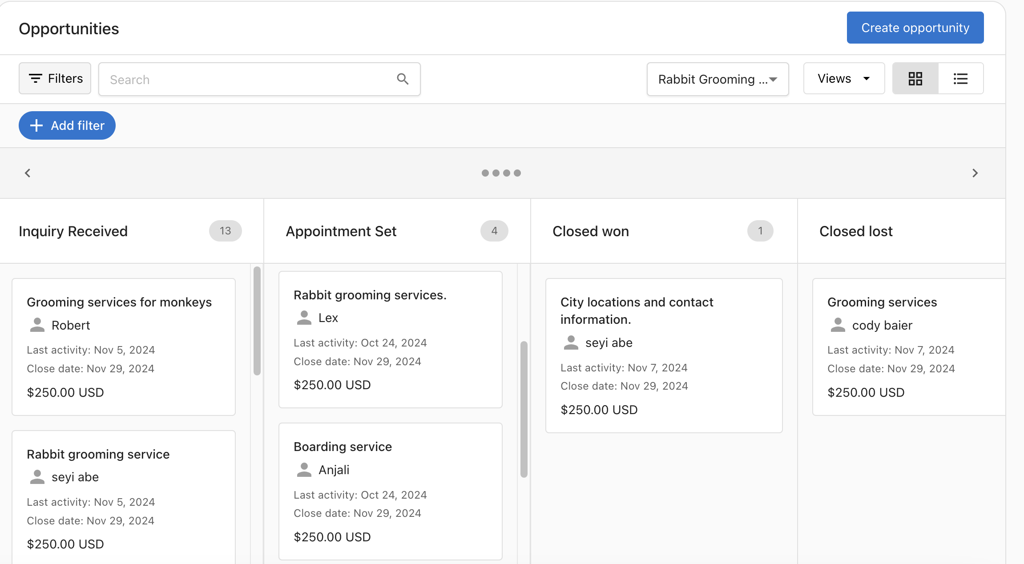
Pipeline View
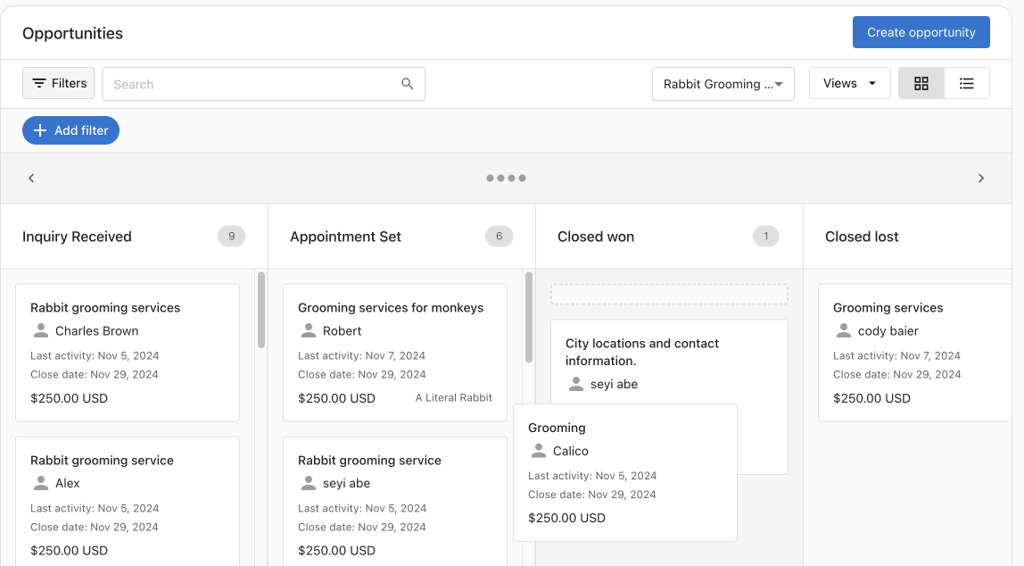
You can manage opportunities visually by stage:
- Click
Set up a pipelineif no pipeline exists. - Drag and drop opportunities to update their stage.
- Use filters and search to find specific records.
List View
To switch to the list view, click the List icon:
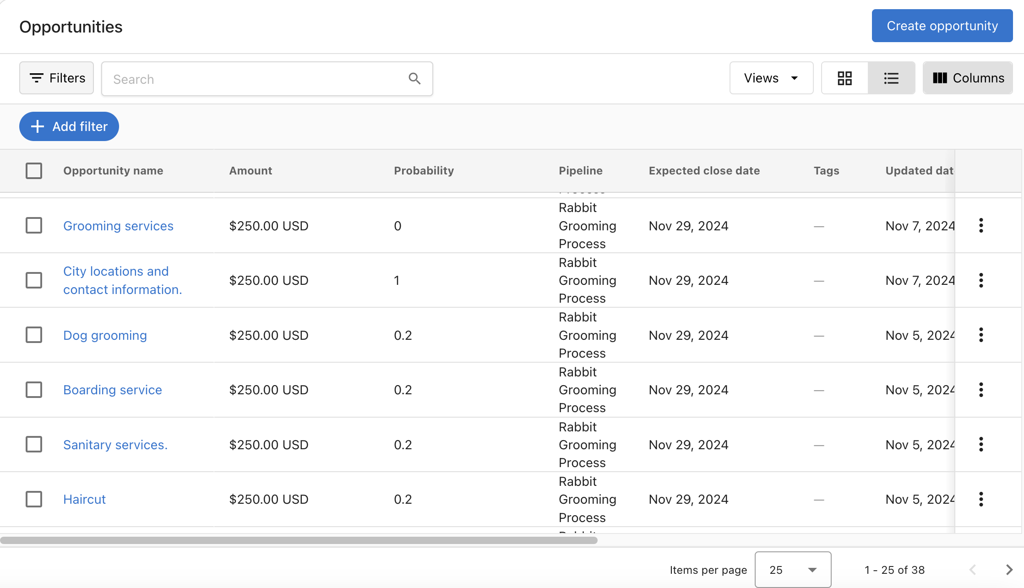
- Configure columns to personalize visible data.
- Sort by fields such as expected close date.
- Use bulk actions to update multiple records.
How to Create an Opportunity
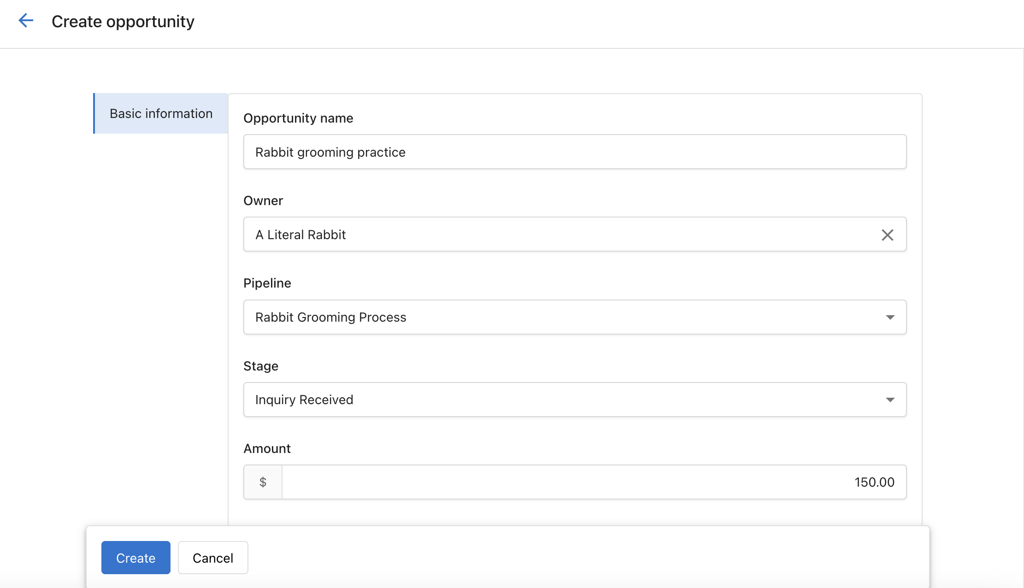
From the Opportunity Page
- Navigate to
CRM→Opportunities. - Click
Create Opportunity. - Enter the opportunity details.
- Click
Create.
Import opportunities (CSV)
- In
CRM→Opportunities, clickImport. - Upload a CSV and map columns to opportunity fields.
- Optionally map associations to existing contacts or companies.
- Review choices, then finish the import.
How to Edit an Opportunity
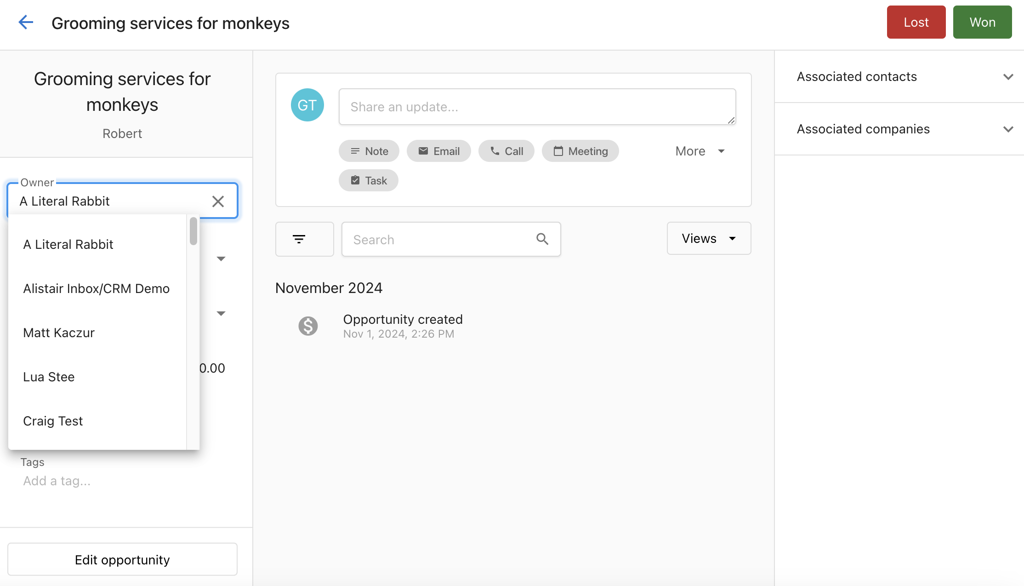
From the Profile Page
- Go to
CRM→Opportunities. - Click on the opportunity.
- Click any editable field in the left panel.
- Make changes and click away to save.
From the Table View
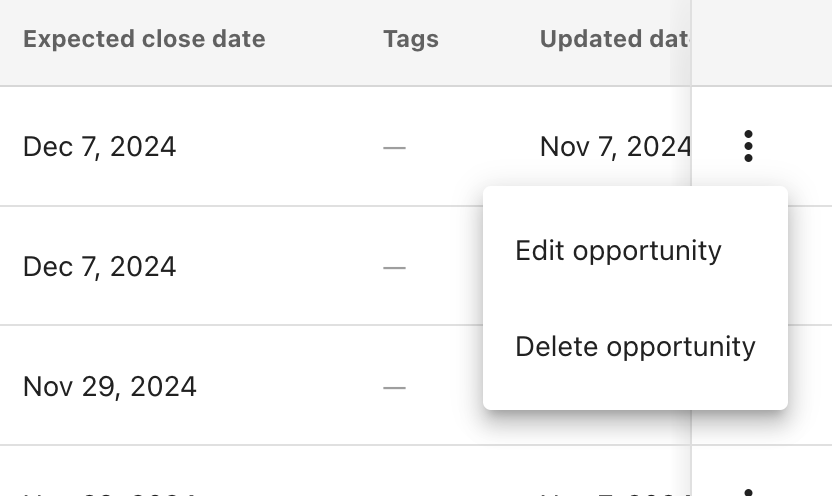
- Go to
CRM→Opportunities. - Switch to the list view.
- Click the action menu for the opportunity.
- Select
Edit opportunity. - Update fields and click
Save.
How to Close an Opportunity
In Pipeline View
From the Profile Page
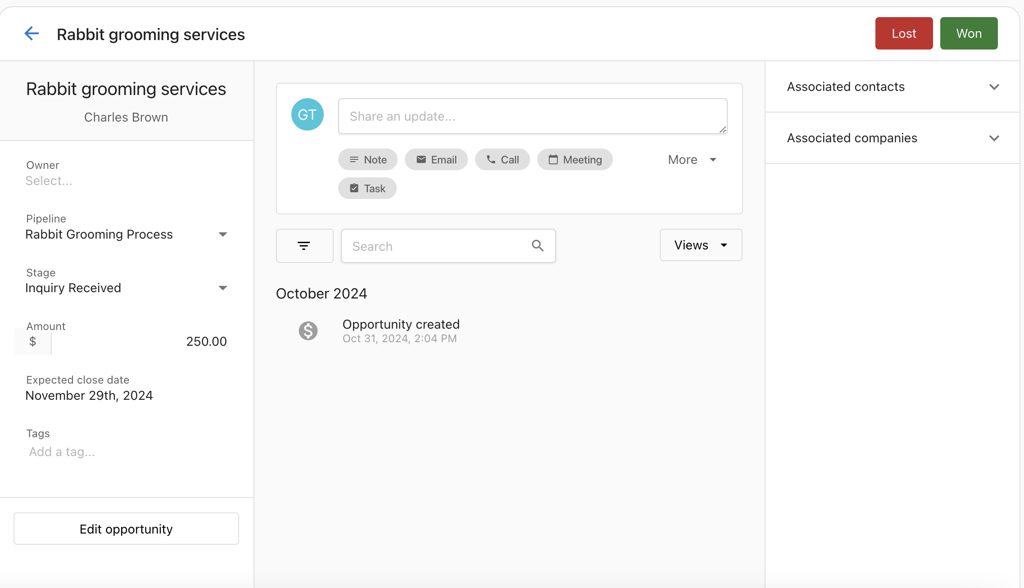
- Open the opportunity.
- Click
Closed WonorClosed Lostat the top.
By Updating the Stage Field
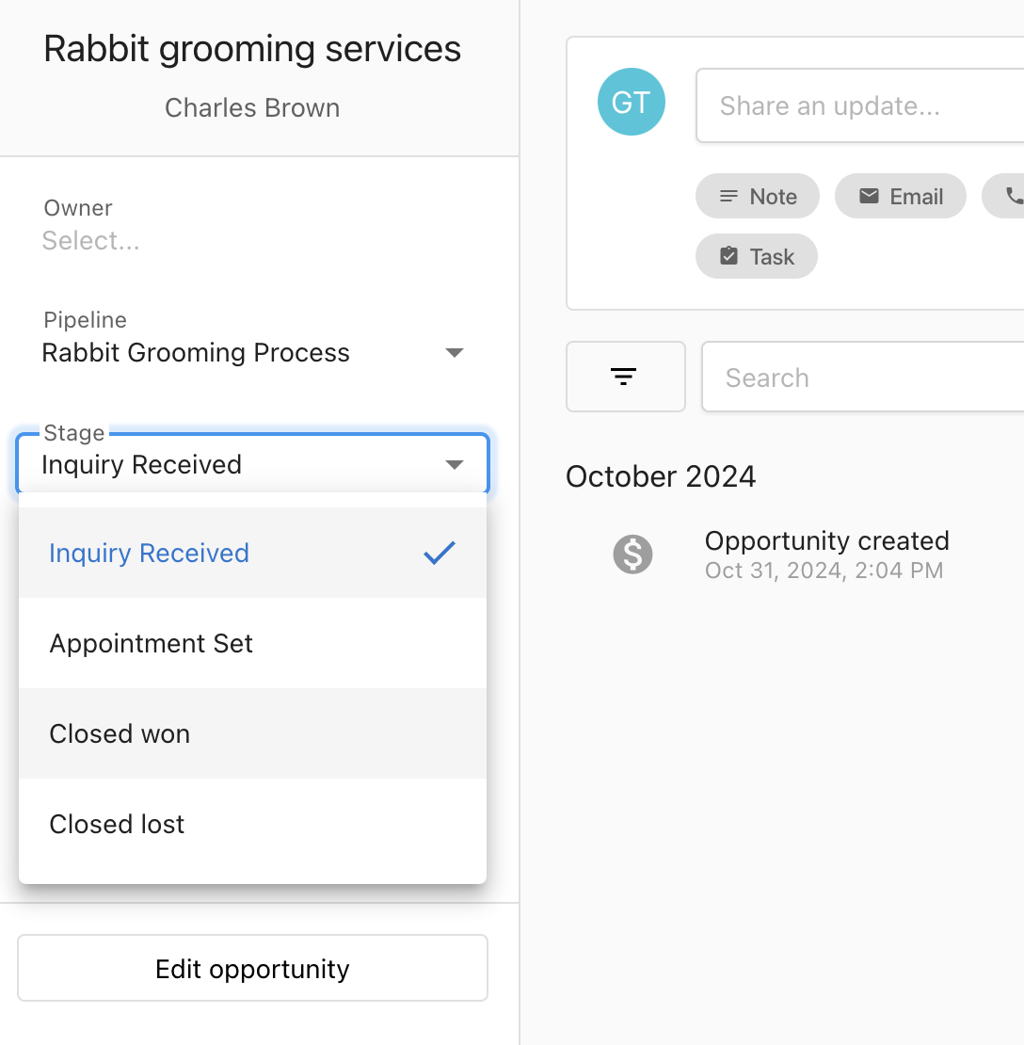
- Open the opportunity.
- Change the
Stagefield toClosed WonorClosed Lost.
How to Set Up a Pipeline
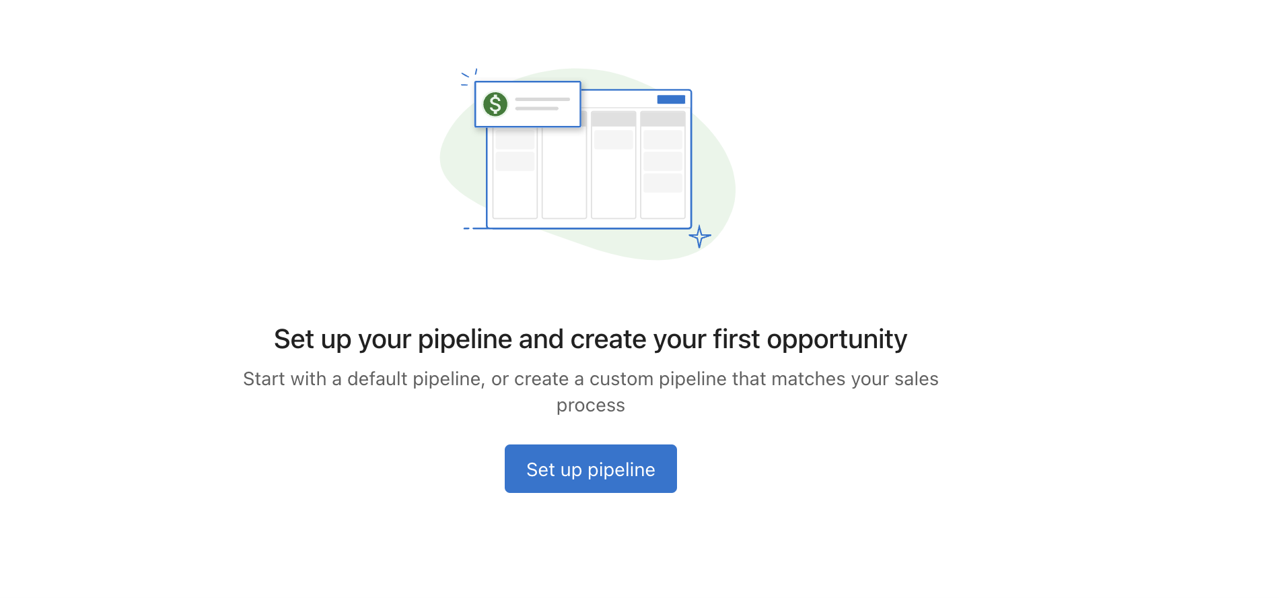
- Go to the Opportunities page.
- Click the
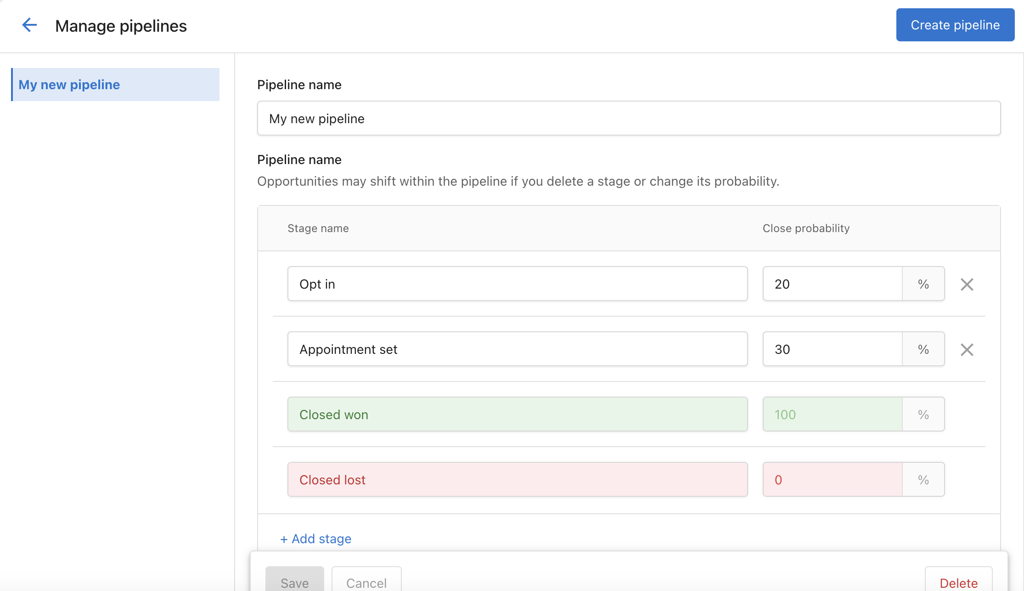
Set up a pipelinebutton. This creates a default pipeline. - Use
Add Stageto insert new stages. - Use the
Xnext to a stage to remove it (except for default stages). - Set a Close Probability for each stage to forecast deal success rates.
How to Add or Remove a Pipeline
Add a New Pipeline
- Click
Create Pipelineto add a new one. - There is no limit to the number of pipelines you can create.
Remove a Pipeline
- Click
Deletenext to the pipeline you want to remove. - Ensure all opportunities are reassigned before deletion. If not, they will remain unattached.
How to Create Opportunities Automatically
You can create an opportunity when a lead is captured from webchat.
Example: Create an Opportunity and Follow Up from Webchat
Requirements: Conversation AI must be active.
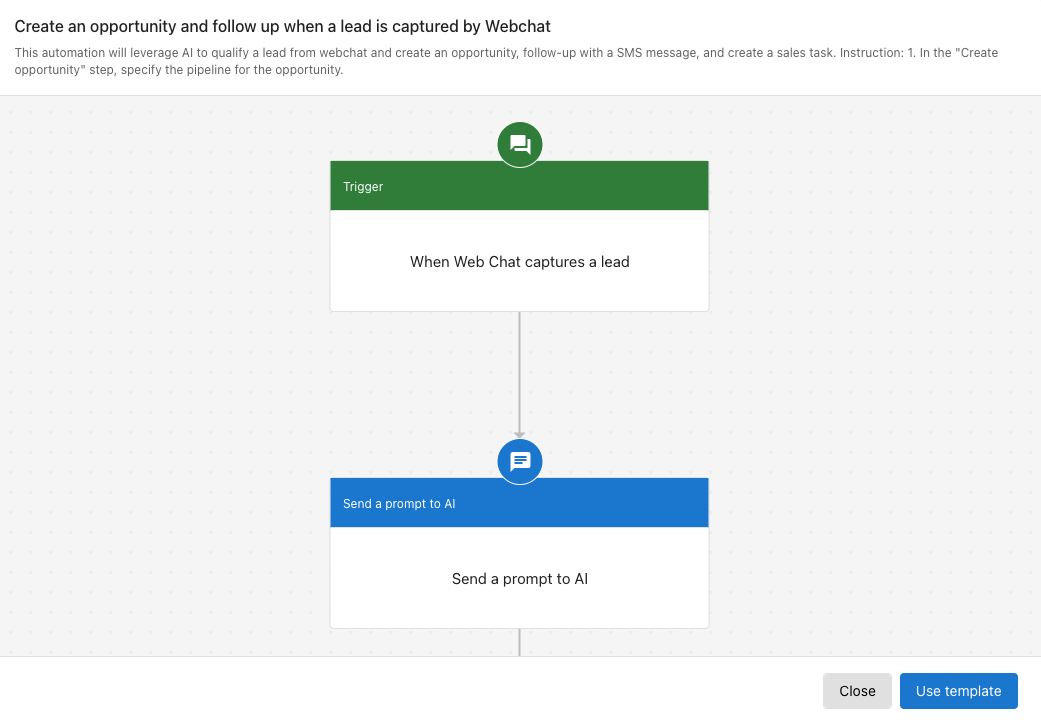
Automation behavior:
- Triggered when a lead is captured through webchat
- Webchat summary is sent to AI
- AI identifies the requested service and creates an opportunity
- A follow-up SMS message is sent to the contact
- A sales task is created for further follow-up
Steps to Set It Up:
- Go to
Automation. - Click
Create automation. - Search for the template Create an opportunity and follow up when a lead is captured by Webchat.
- In the
Create opportunitystep, choose the appropriate pipeline. - Review and customize the steps to match your workflow.
How to Automate Actions Based on Opportunity Stages
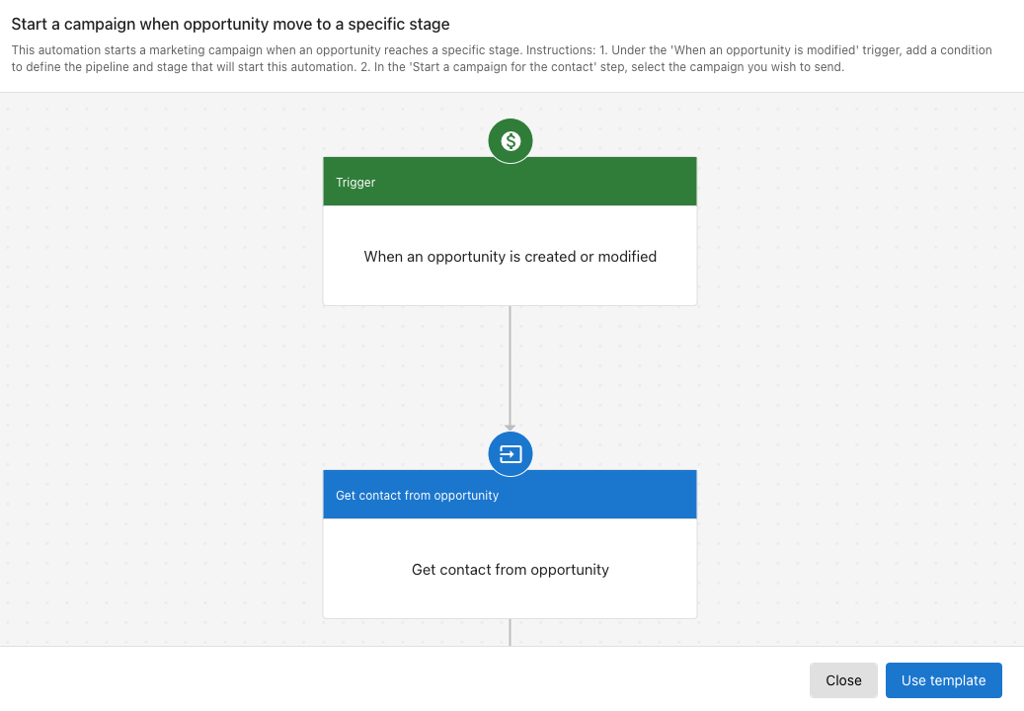
You can start nurturing campaigns or send communications when an opportunity reaches a specific stage.
Example: Trigger a Campaign When an Opportunity Moves to a Nurturing Stage
Requirements: Campaign Pro with SMS credits must be active.
Automation behavior:
- Triggered when an opportunity enters a specified nurturing stage
- Finds the contact associated with the opportunity
- Starts a predefined campaign
Steps to Set It Up:
- Go to
Automation. - Click
Create automation. - Search for the template Start a campaign when opportunity move to a specific stage.
- In the
When an opportunity is created or modifiedstep, set the pipeline and stage conditions. - In the
Start a campaign for contactstep, select the desired campaign. - Review and adjust the automation as needed.
How to Move Opportunities to Specific Stages Automatically
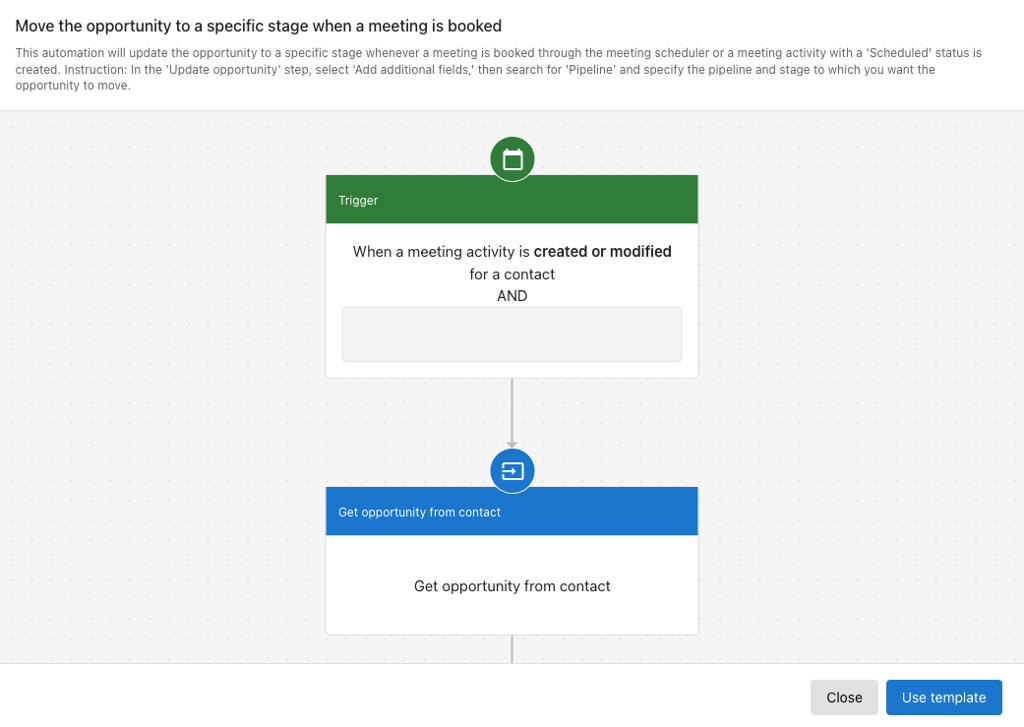
You can move an opportunity to a specific stage when a defined trigger occurs, such as booking a meeting.
Example: Move Opportunity to “Appointment Set” When a Meeting Is Booked
Automation behavior:
- Triggered when a meeting activity is created or modified
- If the meeting status is
Scheduled, the opportunity is moved to the “Appointment set” stage
Steps to Set It Up:
- Go to
Automation. - Click
Create automation. - Search for the template Move the opportunity to a specific stage when a meeting is booked.
- In the
Update opportunitystep, set the correct pipeline and target stage. - Customize the steps as needed for your process.
Frequently Asked Questions (FAQs)
The currency follows your Business App's configured currency settings.
Yes. Go to CRM → Opportunities → Import and upload a CSV. You can map columns to standard fields (name, amount, stage, expected close date, owner, etc.) and to your custom fields. You can also map associations to existing contacts or companies.
If you choose to update matches, rows that match by ID or external ID will overwrite the mapped fields on those records. Export a backup first if you’re unsure.
You can create tasks, notes, and logged calls tied directly to an opportunity, update fields, and move an opportunity to a specific stage as part of an automation.
Go to CRM → Opportunities, then click Set up a pipeline and follow the prompts.
Yes. You can use the automation builder to trigger opportunity creation when specific conditions are met.
You can close an opportunity via the pipeline view, profile page, or by updating the stage field to Closed Won or Closed Lost.
Yes. Opportunities can be linked to multiple contacts and companies. Logged activities appear on all linked records.
Edit from the profile page by clicking the field, or from the table view using the action menu.
Yes. Both pipeline and list views support filters for opportunity stage and other fields.
Use the column configuration options in the list view to choose which fields to display.
Yes. Activities logged on an opportunity are also shown on linked contacts and companies.
Yes. Use the bulk action tools in the list view to update multiple records at once.