
Tasks
Tasks help you plan and track the actions required to move deals forward—calls, emails, follow-ups, and more.
Why use Tasks?
- Keep sales activities organized and on schedule
- Prioritize daily work across contacts, companies, and opportunities
- Improve visibility and handoffs across the team
What’s Included with Tasks?
- Create from CRM records (Contacts, Companies, Opportunities)
- Task table for pipeline-wide task management
- Fields for name, instructions, due date/time, type, priority, associations, and tags
- Views and filters to focus on the most important work
- Task Queue to complete tasks consecutively
How to Use Tasks
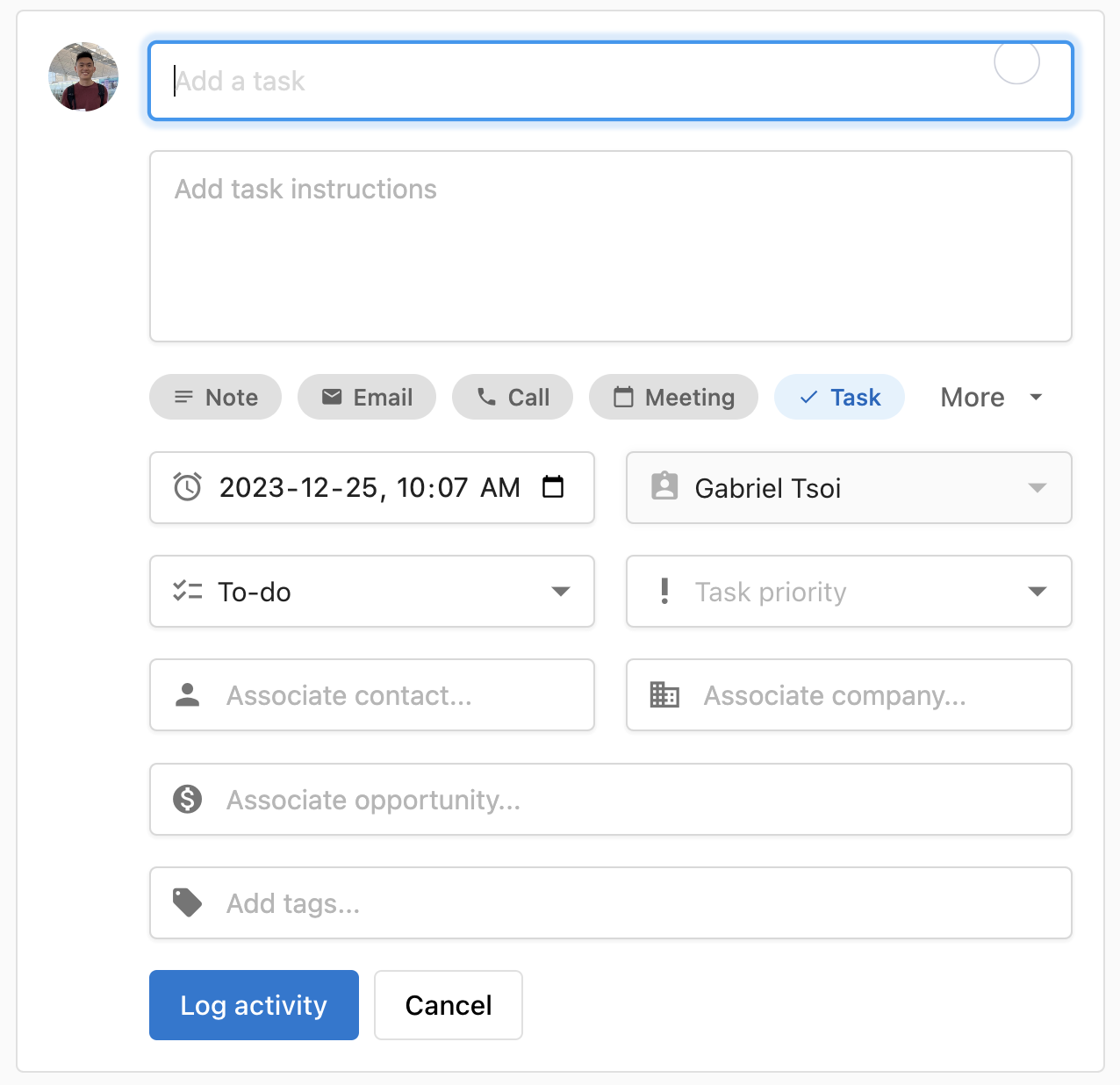
Create from a Contact or Company
- Go to
CRM>Contacts(orCompanies). - Click the record name to open the profile.
- In the activity area, select
Tasks, fill in details, and save.
Create from the Task Table
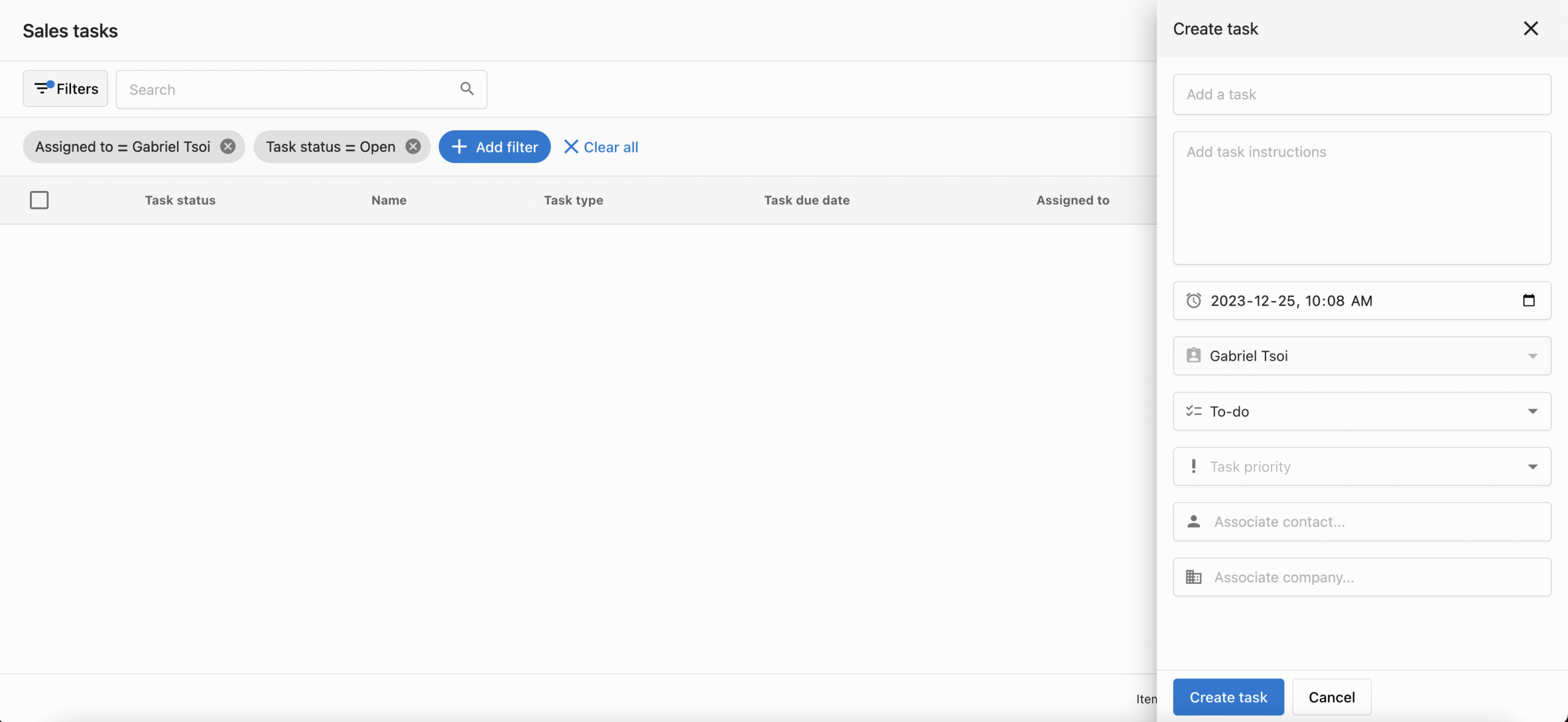
- Go to
CRM>Tasks. - Click
Create taskand enter details:- Name, instructions
- Due date and time
- Type: To-do, Email, Call, Message, Connection, LinkedIn
- Priority: Low, Medium, or High
- Associations: Opportunity, Contact, Company
- Tags
- Click
Create.
tip
Use tags and priority to organize your daily queue, then save a view for today’s focus tasks.
View and Filter Tasks
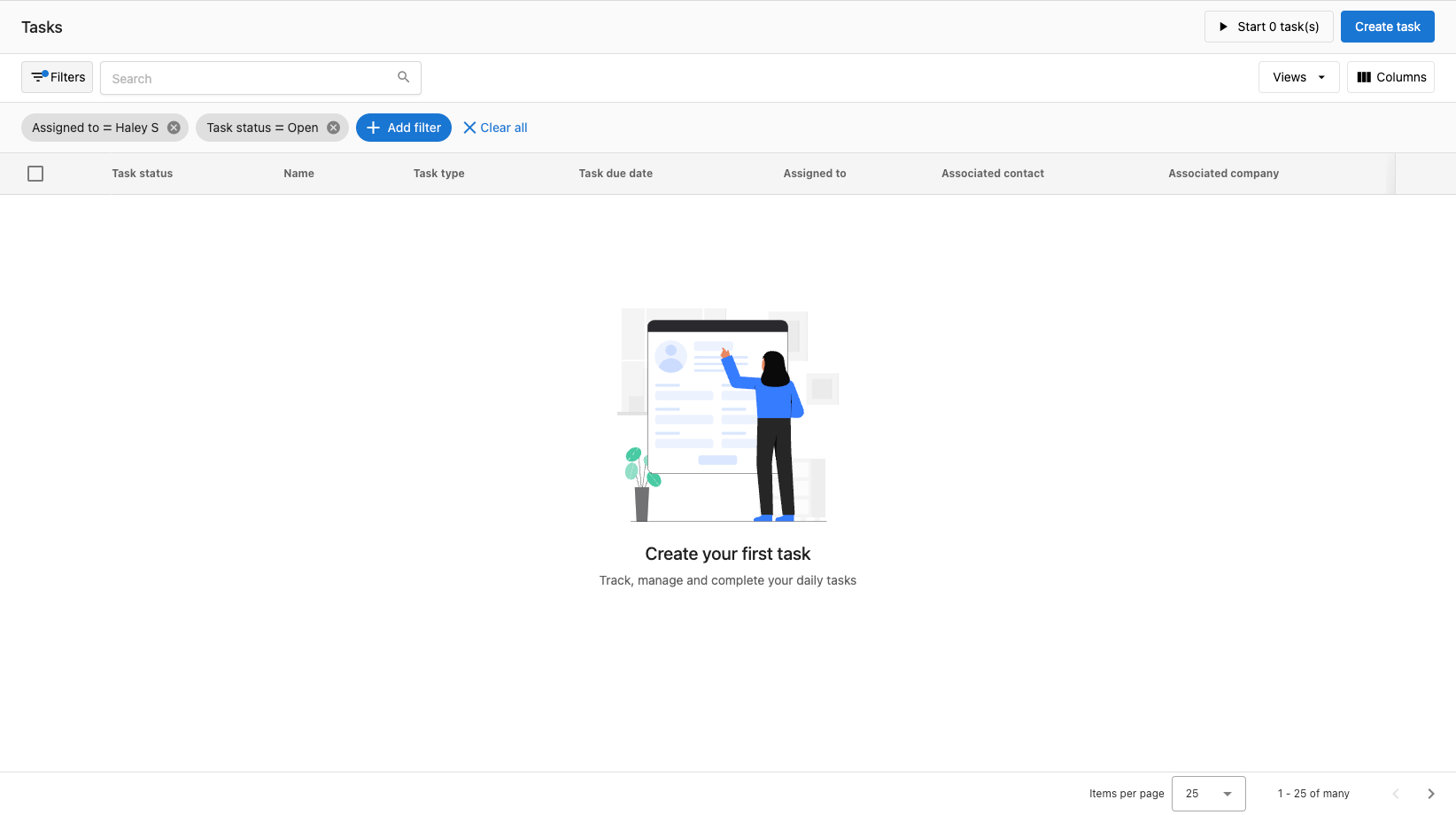
- Go to
CRM>Tasks. - Click
Add filterto filter tasks and save common filters asViews.
note
Views are personal by default. Name them clearly so you can reuse them.
Edit, Complete, or Delete Tasks
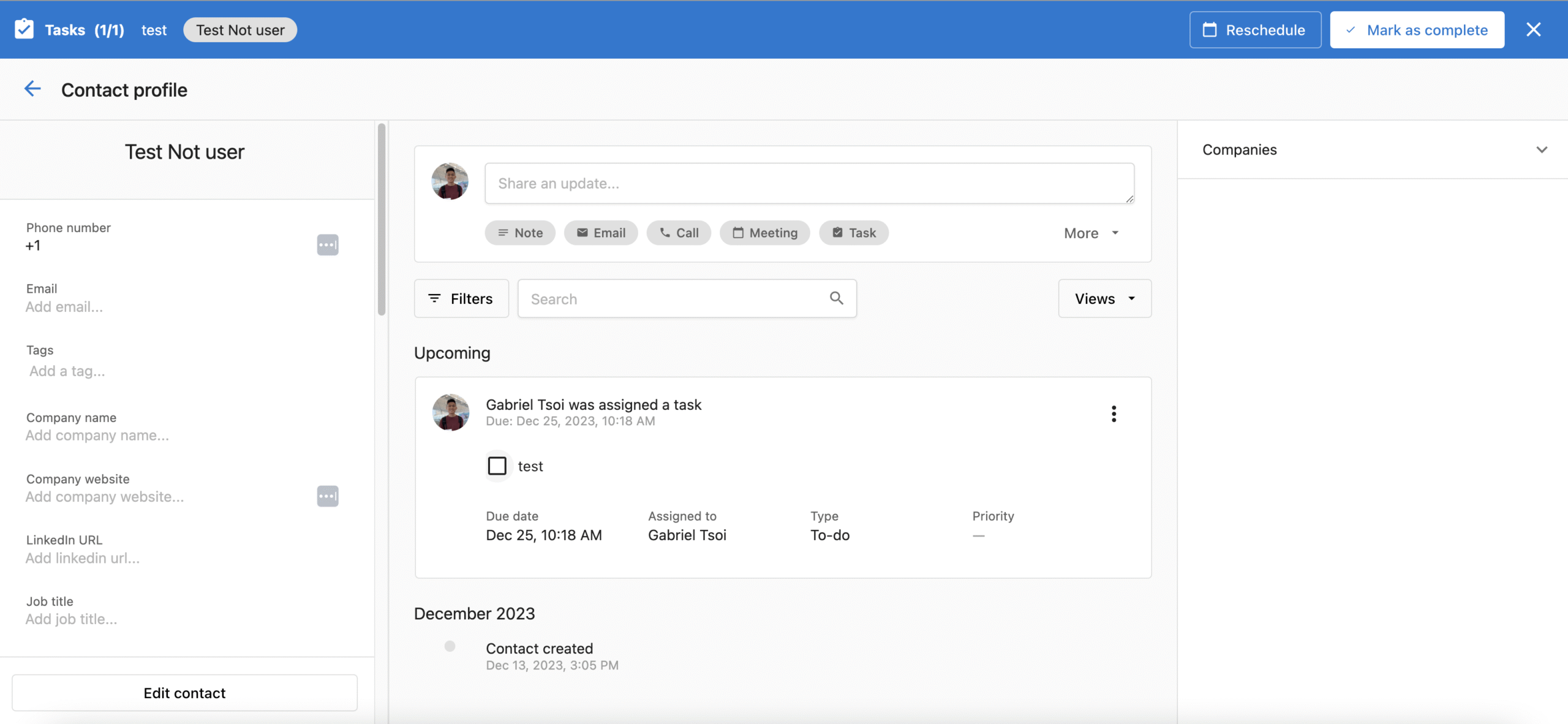
Within a CRM record’s activity timeline:
- Complete: check the task checkbox, or use
Mark as completeif shown. - Edit: open the task menu (kebab), choose
Edit activity, make changes, and save.
From the task table:
- View: click the task name.
- Edit: kebab menu >
Edit task, update fields, and save. - Delete: kebab menu >
Delete task, and confirm. - Complete: change status in the
Task statuscolumn.
Work Faster with Task Queue
- Go to
CRM>Tasksand apply filters or open a saved view. - Click
Start [x] tasksto work through them consecutively. - For each task, choose:
Mark as complete,Reschedule, orSkip. Use the association dropdown to jump between linked records. Exit the queue any time and resume from the table.

info
The task queue works best with a narrowly filtered set of tasks (same type or segment) to reduce context switching.
Frequently Asked Questions (FAQs)
Yes. You can associate tasks with contacts, companies, and opportunities.
Yes. Save common filters as Views to access them quickly.
To-do, Email, Call, Message, Connection, and LinkedIn.
Yes. Edit any task to adjust due date/time, priority, and other fields.